Reminders and Calendar Timing
If you already plan with tasks or calendar events, you can start a timer from that plan. Knoself saves the actual effort as a time record, making it easier to compare what you intended to do with how long it really took.
Create a Reminder
Section titled “Create a Reminder”- Open the Tasks tab.
- Tap + and enter a title.
- Add a date, time, repeat rule, alert, tags, or photos when needed.
- Save it to the appropriate date or group.
For a quick task, the title is enough. You can add scheduling details later.
Create From Clipboard Text or an Image
Section titled “Create From Clipboard Text or an Image”When the clipboard already contains text, a link, a ticket, itinerary, or meeting screenshot, you do not need to retype it:
- Copy the text, link, or image.
- Tap + on the Tasks page and choose Create From Clipboard.
- Text and links prefill the title and notes; an image opens recognition and review.
- Verify the event title and times, then create a task or system calendar event.
Text recognition runs on the device. Check departure, arrival, meeting, or activity times before saving so an order or payment timestamp is not mistaken for the event time.
Start Timing From a Reminder
Section titled “Start Timing From a Reminder”- Find the task you are ready to start.
- Tap the start button on its card.
- Add text, tags, or photos while timing, or adjust the start time.
- Stop and save when finished.
The plan stays available while the actual duration becomes a time record. Your review can therefore show both completion and real effort.
Organize Task Lists
Section titled “Organize Task Lists”When a project ends or a list is temporarily unused, archive it from list management. Archiving does not delete its tasks and you can restore it later. Knoself keeps at least one active list so a new task always has somewhere to go.
Add the Today Reminders Widget
Section titled “Add the Today Reminders Widget”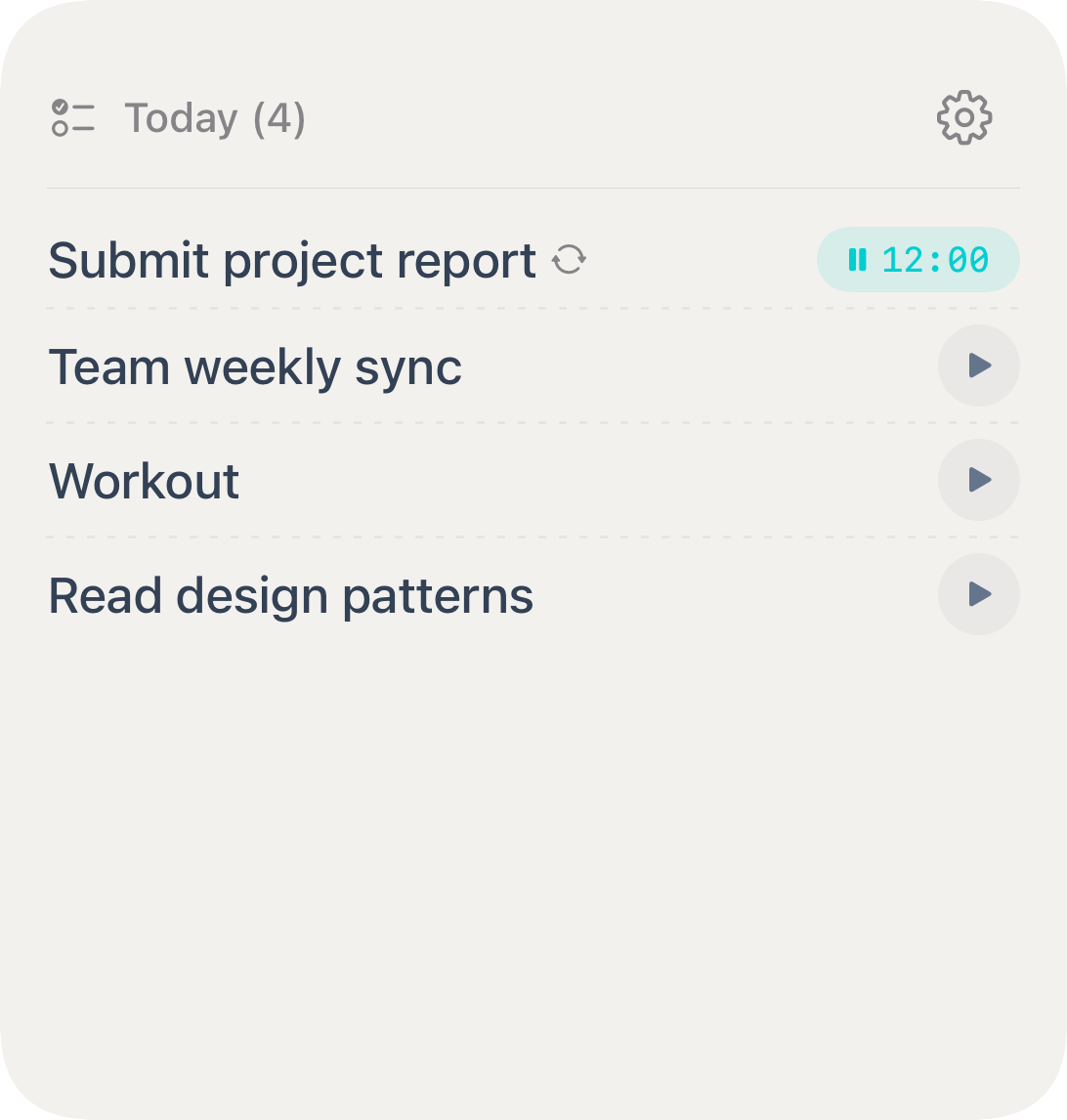
- Long-press an empty area on the iPhone Home Screen.
- Tap + and search for Knoself.
- Add the Today Reminders widget.
- Tap a due task in the widget to open it or start timing.
If a new task does not appear, open Knoself once to refresh the widget data.
Start Timing From the Lock Screen
Section titled “Start Timing From the Lock Screen”Long-press the Lock Screen and choose Customize, select Lock Screen, then tap the widget area below the clock. Search for Knoself and add either of these entries.
Lock Screen Tasks Widget
Section titled “Lock Screen Tasks Widget”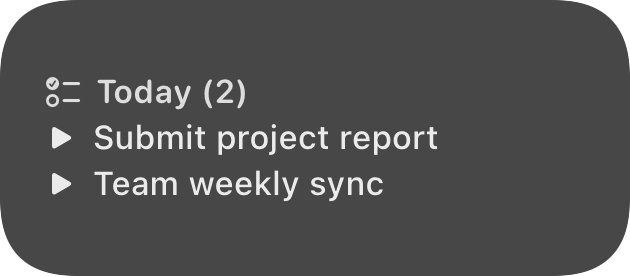
This widget lists today’s tasks. Tap the start control beside a task to begin timing it directly from the Lock Screen.
Lock Screen Quick Timer Widget
Section titled “Lock Screen Quick Timer Widget”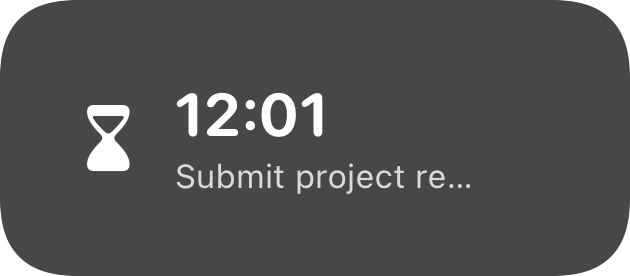
Use this entry when you want to start timing without choosing a planned task first. While a timer is running, it shows the current activity and elapsed time.
Start From a System Calendar Event
Section titled “Start From a System Calendar Event”After granting calendar access on iPhone or iPad, Knoself can show system calendar events on the Tasks page. Select an event to start timing without recreating it as a task.
When a timer ends, you may also write the finished record to your system calendar. Knoself does not replace a full calendar app; keep invitations, attendees, and complex event editing in your original calendar.
Differences on Mac
Section titled “Differences on Mac”- Start timers from Knoself tasks and monitor elapsed time in the menu bar.
- Manually import incomplete Apple Reminders. Imported items are managed separately and are not synced back.
- Write finished time records to the system calendar. Mac does not provide the iPhone calendar-range browser and start entry.
Choose a Default Entry
Section titled “Choose a Default Entry”- A plan managed in Knoself: create a reminder.
- A meeting already in Calendar: start from the calendar event.
- Without opening the app: use the Today reminders widget.
- While the phone is locked: use the Lock Screen Tasks or Quick Timer widget.
- Working at a Mac: start from a desktop task and check the menu bar timer.