Home and Lock Screen Widgets: Start and Check Timers Quickly
Knoself supports quick timing from iPhone Home Screen widgets. Start a general time record, launch a frequent tag, or begin timing one of today’s tasks.
Widget Types
Section titled “Widget Types”Time Recorder
Section titled “Time Recorder”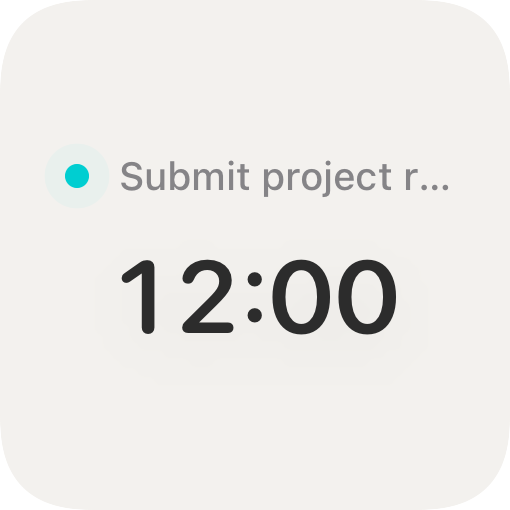
This widget is for the simplest flow:
- When no timer is running, tapping the widget opens a new timer.
- When a timer is running, the widget shows the running state and elapsed time.
- Tapping it again returns to the current timer page.
Quick Tag Launcher
Section titled “Quick Tag Launcher”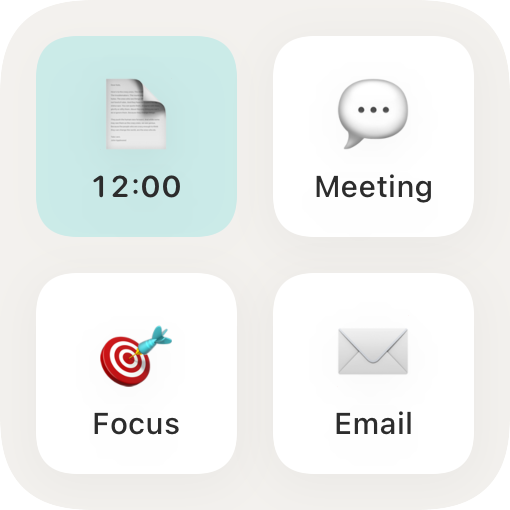
This widget starts timers by tag:
- One widget can hold up to 4 tag shortcuts.
- Tapping a tag starts timing with that tag.
- If a timer is running, the matching tag cell shows the running state.
Today Reminders
Section titled “Today Reminders”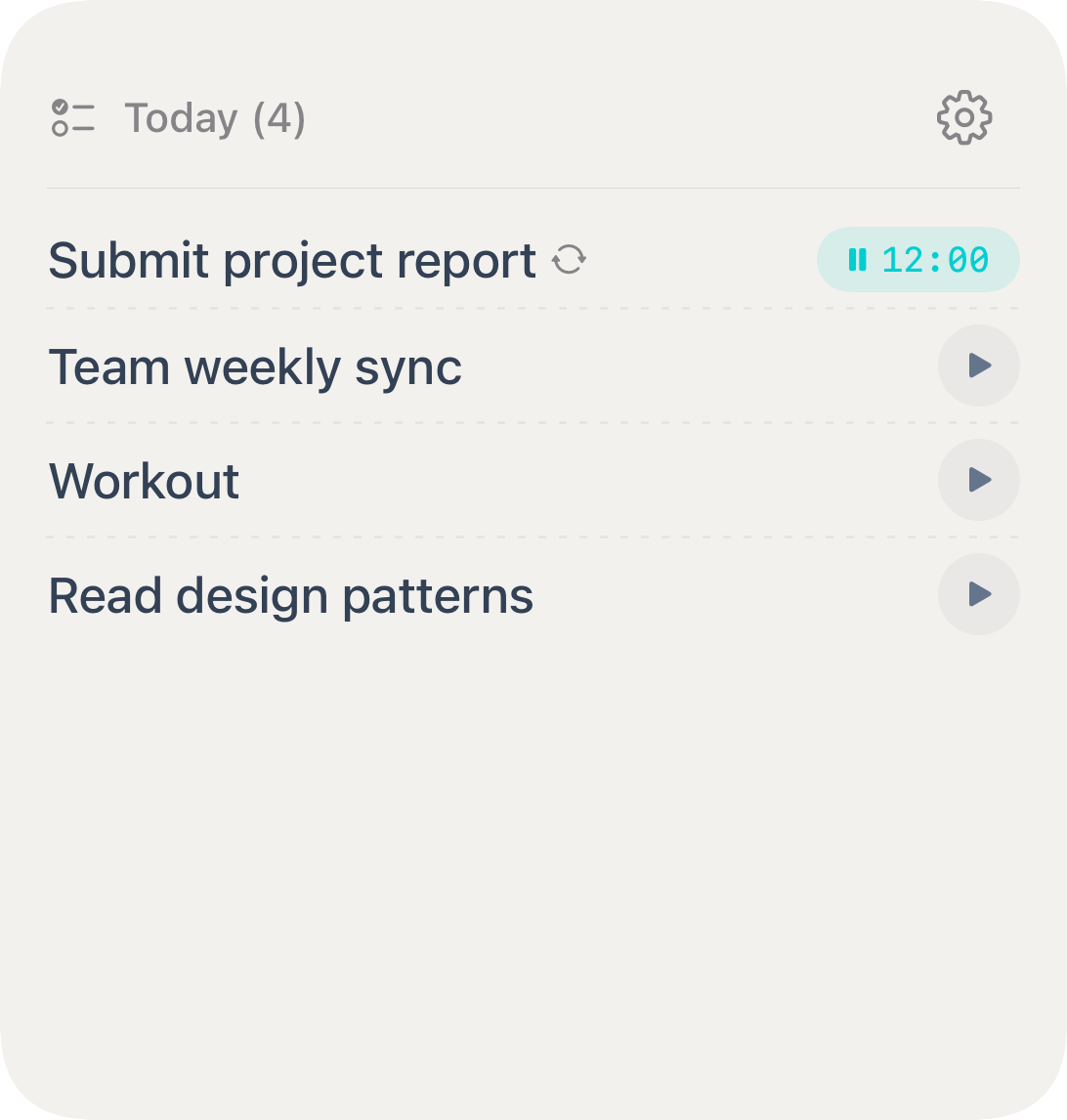
The Today widget lists due tasks and lets you start timing from a reminder. It is useful when you want to connect a plan with the time you actually spend. See Start From Reminders and Calendar Events for setup details.
Configure Tags in the App
Section titled “Configure Tags in the App”- Open Knoself.
- Go to Settings.
- Open Desktop Widget.
- In the default tab, tap Add Tag.
- Choose a suggested tag, an existing tag, or create a custom tag.
- Save, then return to the iPhone Home Screen to add the widget.
Add the Widget
Section titled “Add the Widget”- Long-press an empty area on the iPhone Home Screen.
- Tap + in the top-left corner.
- Search for Knoself.
- Choose the widget you need:
- Time Recorder: good for starting or checking the current timer.
- Quick Tag Launcher: good for a few frequent activities.
- Tap Add Widget.
Select a Different Tab
Section titled “Select a Different Tab”Knoself’s widget tabs are data sources for configurable widgets. If you created multiple tabs in the app:
- Long-press the Knoself widget on the Home Screen.
- Choose Edit Widget.
- Tap Tab.
- Select the tab you configured in Knoself.
To show multiple groups at once, add the same widget to the Home Screen multiple times, then edit each widget and assign a different tab.
If New Tags Do Not Appear
Section titled “If New Tags Do Not Appear”iOS may not refresh widget data immediately after you create a new tab. Reopen Knoself once, then return to the Home Screen and edit the widget again.
Lock Screen Tasks and Quick Timer
Section titled “Lock Screen Tasks and Quick Timer”Knoself also provides two Lock Screen entries:
- Lock Screen Tasks lists today’s tasks and starts one from its adjacent control.
- Lock Screen Quick Timer starts without selecting a task first and shows the current activity while running.
For setup and screenshots, see Start From Reminders and Calendar Events → Start Timing From the Lock Screen.