iCloud Sync and Data Export
Knoself stores records on the current device by default. Enable iCloud only when you want one data set across iPhone, iPad, and Mac; export a copy when you need a backup.
Enable iCloud Sync
Section titled “Enable iCloud Sync”- Sign in to the same Apple Account on every device and enable iCloud Drive.
- Enable iCloud Sync in Knoself Settings.
- Keep the app open during the first sync until its status completes.
- Open Knoself on the next device and enable sync there.
Knoself remains local-first; iCloud is an optional device-to-device channel. The developer cannot read records stored in your private iCloud space.
Export Your Data
Section titled “Export Your Data”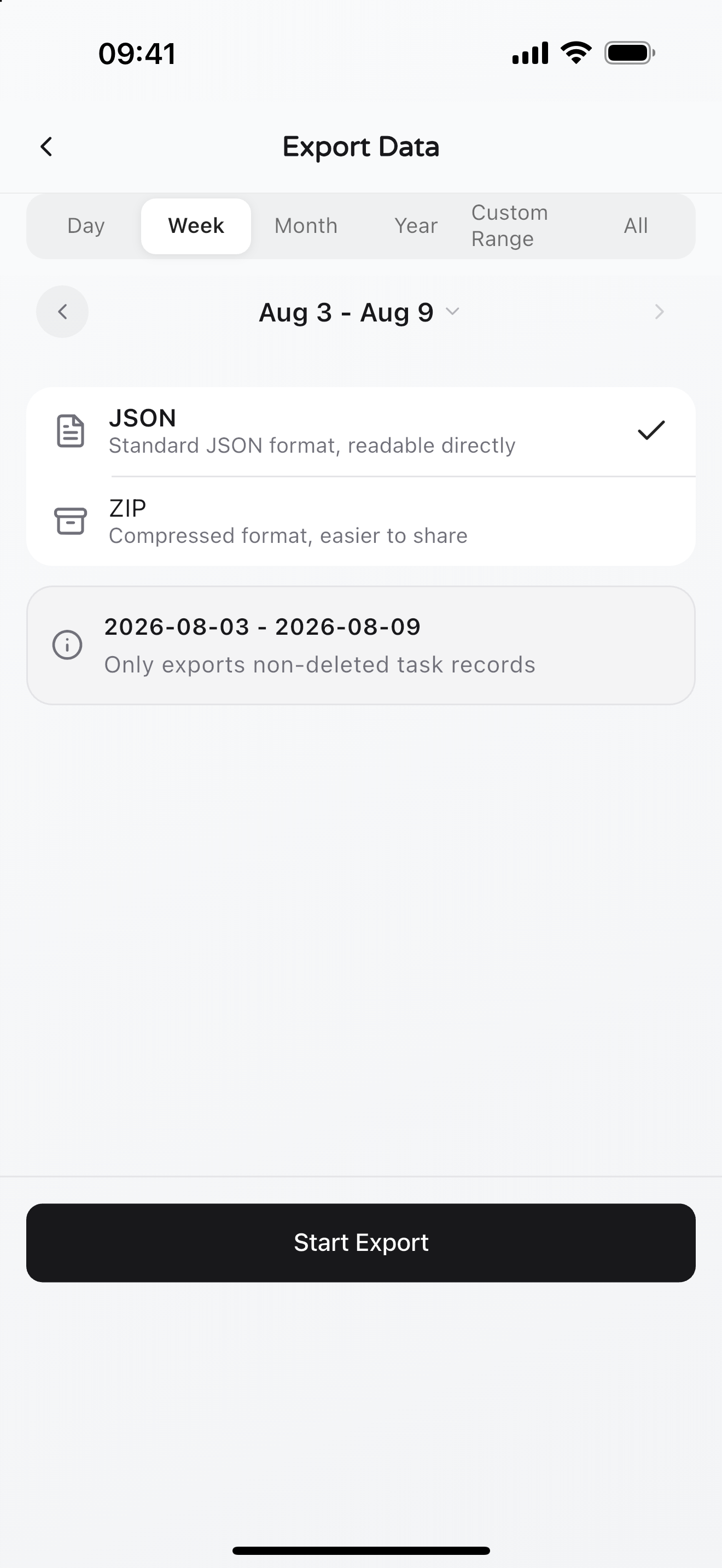
- Open Settings → Import & Export → Export Data.
- Choose a day, week, month, year, custom range, or all data.
- Select JSON or ZIP.
- Tap Start Export, then save or share it to a location you trust.
JSON is directly readable; ZIP is better for compressed backups and attachments. Images, reflection prompts, and export files leave the app only after you initiate sharing. Check them before sending them to a third party.
If Sync Does Not Finish
Section titled “If Sync Does Not Finish”Check the network, iCloud Drive, Apple Account, and Knoself sync switch in that order. Avoid repeatedly toggling sync on several devices; let one device finish before opening another.
If the problem continues, do not uninstall the device that still holds complete records. Export a JSON or ZIP backup, note the affected devices and sync state, then see Sync and Widget Troubleshooting or email support@knoself.com.