Import Apple Health Data
Sleep, workouts, and mindfulness are difficult to capture with manual timers. With your permission, Knoself can read these durations from Apple Health and place them beside your manual records.
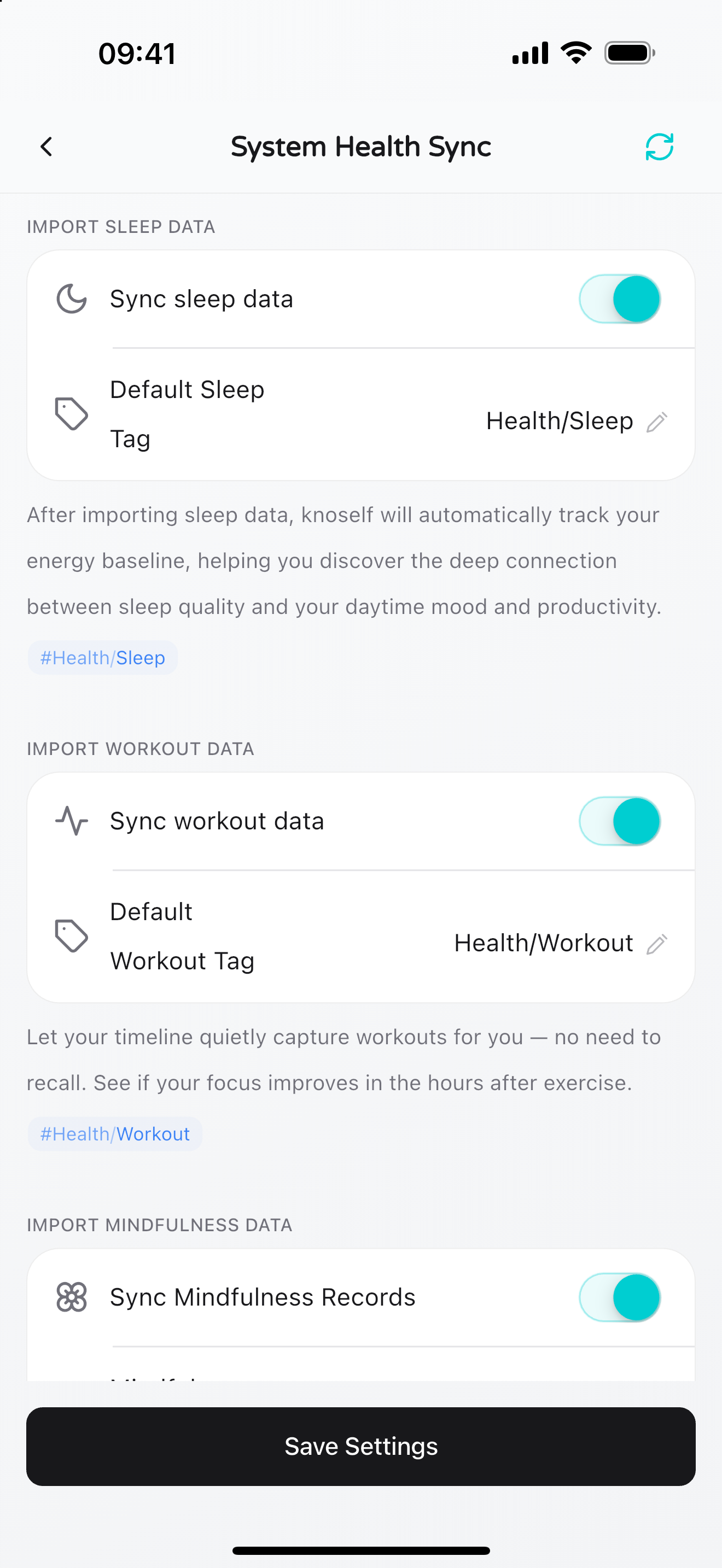
Enable Health Import
Section titled “Enable Health Import”- On iPhone, open Settings → Import & Export → Apple Health in Knoself.
- Enable sleep, workout, or mindfulness data as needed.
- Grant read-only access when iOS asks.
- Choose a default tag for each category.
- Return and refresh to confirm the records appear on your timeline.
Knoself reads only the categories you approve. You can revoke access in iOS Settings or Knoself at any time. Mac cannot initiate Apple Health imports, so complete this step on iPhone.
Avoid Duplicates
Section titled “Avoid Duplicates”- Do not manually create the same sleep period after automatic sleep import is enabled.
- Some focus and efficiency views distinguish or exclude sleep so recovery time is not mixed with waking hours.
- Changing a default tag affects future classification; existing records can still be edited separately.
If Data Does Not Appear
Section titled “If Data Does Not Appear”- Confirm the data already exists in Apple Health.
- Check read access under iOS Settings → Privacy & Security → Health → Knoself.
- Return to Health Import and refresh.
- Confirm the selected time range contains that Health data.
Health import and device sync are separate features. To continue the same records on iPad or Mac, see iCloud Sync and Data Export.